XSaved is now on iOS & Mac

X moved bookmarks. XSaved followed.

X retired x.com/i/bookmarks and put your saves inside a new History page at x.com/i/history, with Bookmarks and Likes as tabs under it. XSaved now attaches to the new page: the show/hide toggle sits next to the History title, exactly where it always was relative to the page name.

Route map

Where your bookmarks live now

Old links still resolve — X forwards them — and XSaved recognizes both shapes.

1/i/bookmarks → /i/history

2/i/bookmarks/<id> → /i/history/bookmarks/<id>

3/i/history/likes → not your bookmarks — XSaved stays out

What actually broke

XSaved decided whether to show itself by looking for /i/bookmarks in the address bar. The day X renamed the route, that check quietly became false everywhere — no error, no warning, just a bookmarks page with no toggle on it, and no way into the grid, folders, or search.

The fix goes deeper than swapping one string. XSaved now keeps a single description of what the bookmarks page is, and every part of the extension asks that one place instead of pattern-matching the URL on its own. The next time X reshuffles its routes, there is exactly one line to change.

What you'll see

Open x.com/i/history and the toggle is next to the History title, with your saved count beside it. Open a single X folder and it's there too. Switch to the Likes tab and it steps aside — Likes isn't your bookmark library, so XSaved leaves that page alone.

Anything still pointing at the old address — a pinned tab, a bookmark of your bookmarks, a link from an older version of XSaved — keeps working.

A real folder manager

The folders dialog stopped being a list you could only look at. Create, rename, and delete folders right where you see them, with bookmark counts that update the moment something moves.

Manage folders where you use them

Every folder action now lives in the same dialog you already use to filter the grid. Create a folder, rename one, delete one you're done with — without leaving the view, and without the folder filter or its live counts going away while you work.

Counts used to lag behind reality: add a bookmark to a folder and the badge kept the old number until something else forced a refresh. Sidebars, folder popups, and the dialog now all update immediately, and a count that drifted at some point in the past gets repaired from what's actually on your device.

Deleting a folder in one tab no longer confuses another

If you had X open in two tabs, deleting a folder in one could leave the other showing a stale list — sometimes hiding folders that still existed. Open dialogs now rebuild from the authoritative post-delete state, including the case where you remove your last X folder but still have folders you made in XSaved.

New mark

The extension icon — in the toolbar, on the extensions page, and in the Web Store — is the new XSaved mark, with a thicker, bolder stroke that survives being shrunk to 16 pixels. Exported HTML files carry the same logo.

Your folders, notes and tags, on every device

Organize a bookmark on your iPhone and it shows up in Chrome — and the other way round. This release is mostly the unglamorous half of that promise: what happens when you're offline, when two devices edit the same bookmark, and when a change fails halfway.

Changes arrive without a reload

Folders created, renamed, reordered, or deleted somewhere else now refresh the open grid, sidebar, folder popup, and folder dialog in place. Notes and tags written on your phone appear as soon as you open the XSaved grid or come back to the bookmarks tab.

Behind that is one lightweight refresh rather than a stampede: rapid focus changes, navigation, and toggling the grid all collapse into a single check.

Edits that survive bad conditions

An offline rename or delete used to reappear for a moment after reconnecting. Retained changes are now sent to your account before the folder list is pulled back down, so what you did last is what you see.

When two devices touch the same bookmark at nearly the same time, notes, tags, and folder assignments each keep the newest value on their own — an older edit finishing late can't overwrite a newer one, and clearing a field is treated as a real change rather than an absence of one.

Deletes that stay deleted

Deleting a folder now removes its bookmark assignments everywhere, and that removal survives restarts and reconnects. A folder deleted on one device can no longer come back from an older device's copy, and a folder you deliberately kept can no longer be erased by an old import replaying itself.

Passkey sign-in, and sync you opt into

XSaved works entirely on your device. If you want your folders, notes, and tags on more than one device, you can now turn on sync deliberately — and sign in with Face ID, Touch ID, or your device authenticator instead of a password.

Accounts

An account only if you ask for one

First-run setup finishes as soon as your local library is ready. Nothing pushes you toward a login.

Sign-in

Passkey

Passwords

0

Cloud sync

Opt-in

Local first, and it stays that way

Setup used to end at a login banner. Now it ends when your bookmarks are imported and searchable, and the bookmarks view has no banner at all. Cloud sync starts from one quiet action in the extension popup: Turn on Sync.

Signing in is an explicit choice between using an existing XSaved account and creating a new one. A failed sign-in never silently creates an account.

One account, one library per X account

Each X account you connect keeps its own library — bookmarks, mirrored folders, notes, and tags live inside the one you selected, so the same post ID in two X accounts can't collide. Switching X accounts no longer signs you out of XSaved; it just switches which library is active.

You can delete your XSaved cloud account from inside the product after a recent passkey check. Synced data and local billing records go together; a subscription billed through Stripe still has to be cancelled with the billing provider.

If you lose the device with the passkey

A verified recovery email can issue a one-use link that reconnects your existing account instead of creating a duplicate. Recovery stays off until the sending address is configured and reviewed, and the link is never stored in readable form.

Folders are the one way to organize

XSaved had two organization systems: Topics, produced by on-device AI classification, and Folders, mirrored from X. Two systems meant two mental models, two sync paths, and a Pro gate on the half most people wanted. Topics are retired. Folders are free for everyone.

Migration

Your topics became folders, automatically

Nothing was deleted. Old topic data stays on your device as read-only history, exportable from Settings → Data.

1Topic "Design" → Folder "Design"

2Topic "Design › Type" → Folder "Design / Type"

3Topic imported from an X folder → merged back into that folder

Free, and no X Premium required

Create, rename, delete, and assign folders without X Premium — and without an X session at all for folders you create inside XSaved. The sidebar's New Topic action is now New Folder, and the Edit dialog on any card edits folders instead of topics.

Renaming or deleting a folder that came from X now reaches X immediately, with no first-use learning step. Folders you create in XSaved sync to your account when you're signed in.

Folders stop reshuffling themselves

The folders list, the management dialog, and the picker in the save dialog each used to sort folders their own way — by X's recency order in one place, alphabetically in another. Renaming a folder on X, or just adding a bookmark to it, could silently reorder everything.

A folder's position is now set once, the first time it's imported, and never moves on its own again.

Edits that don't clobber each other

Opening the edit dialog loads the bookmark's latest saved tags and notes rather than the copy the grid happened to be showing, and saving preserves anything it didn't explicitly change. A save from the grid can no longer overwrite a newer edit made from the on-X toast or another device.

Sync you can watch, and restart

A full sync used to take the page hostage behind a modal. Now it runs with a live count in the header while you keep working — and when a library really has drifted, there's one button that rebuilds it from scratch.

Sync

Nothing blocks, nothing is silently dropped

A failed sync is queued on-device and retried — after the failure, on the regular cycle, at browser startup, and right after you sign in.

Blocking modals

0

Background cycle

30 min

Retries

Auto

Reset & Re-sync

A new action in the popup wipes your bookmarks in the XSaved cloud and on this device, then rebuilds everything from X in one pass — the clean fix for a library that's missing details or out of date. Your bookmarks on X are never touched, and it confirms before it starts.

It also shows its work: each step is logged and the live processed count ticks up while it rebuilds, so you can tell the difference between slow and stuck.

The full sync stopped interrupting you

The Full Sync in Progress dialog is gone. In its place, a small live count sits next to the sync indicator in the header, and the grid stays usable — search, filter, and organize while thousands of bookmarks stream in.

A cleaner popup

The extension popup was redesigned around the count that matters, with X-blue accents on a dark surface and a shorter list of actions. Same features, less noise.

Bookmarks that read like they do on X

A saved post should look like the post you saved. Mentions, hashtags and links are blue and clickable, authors have names again, and long posts keep their paragraphs.

Text rendering

What used to get lost

Applies to newly synced bookmarks — re-sync to backfill the ones you already have.

1@handle #hashtag $cashtag → blue, opens on X

2a link written mid-sentence → kept, shown as its domain

3glaze.app (no https://) → detected and linkified

4Node.js, e.g., shadcn/ui → left alone, not a link

Links stopped disappearing

A link written inside a sentence used to vanish from the saved text entirely, and a link at the end of a post — the most common place for one — was dropped too. Both are kept now, shown as their friendly domain in X-blue. Links that exist only to power a preview card are still hidden from the text, because the card already shows them.

Bare domains typed without a protocol are linkified the way X does it, with careful matching so code, abbreviations, and version numbers stay plain text.

Names, and paragraphs

Bookmarks show the poster's real display name next to the handle instead of repeating the handle twice. The name and the styled-link data were being captured all along and then silently dropped before storage — they persist now.

Multi-paragraph posts used to collapse into one wall of text. Blank lines are preserved, so a long post reads the same in XSaved as it does on X.

Saves from your phone, and richer cards

Bookmarks you saved on your phone, or on any other device, now reliably reach your library here. And a quoted post finally looks like a quoted post — with its article and link previews intact.

Cross-device saves stop going missing

Bookmarks made outside this browser could be skipped entirely by the quick sync. They now come through the delta sync, and a periodic reconcile pass heals gaps left by an earlier interrupted run.

An interrupted sync is also no longer recorded as a completed one — which is what let a partial import look finished and stay that way.

Quoted posts and articles render properly

A quoted post now carries its own media, link card, and X article preview into the grid, instead of collapsing to bare text. Native X articles get their real card treatment, both as the main post and inside a quote.

Existing bookmarks pick this up without a re-sync, including quoted posts that have no photo of their own — a case that used to bail out early and show nothing.

More about each bookmark

Engagement signals and content metadata from X are captured at save time, and rows saved before that arrived are repaired in place rather than left half-populated.

File a bookmark as you save it

The save toast that appears when you bookmark a post on X became the fastest place to organize: pick several folders at once, uncheck one you didn't mean, and see the result in the grid immediately.

A multi-folder picker in the toast

One bookmark can belong to several folders, so the picker lets you choose several — and unchecking is a first-class action rather than something you fix later in a dialog. The toast stays alive as long as you're using it and gets out of the way when you're done.

The grid keeps up

Saving from X used to leave the XSaved grid showing yesterday's library until something forced a refresh. A save is now visible immediately, with the rest of the post's details filled in behind it as they arrive, and every write broadcasts to open views so the grid refreshes itself.

Actions you take in X's own interface — filing a bookmark into an X folder, removing it — are mirrored into XSaved as they happen, rather than waiting for the next full sync.

Author memos

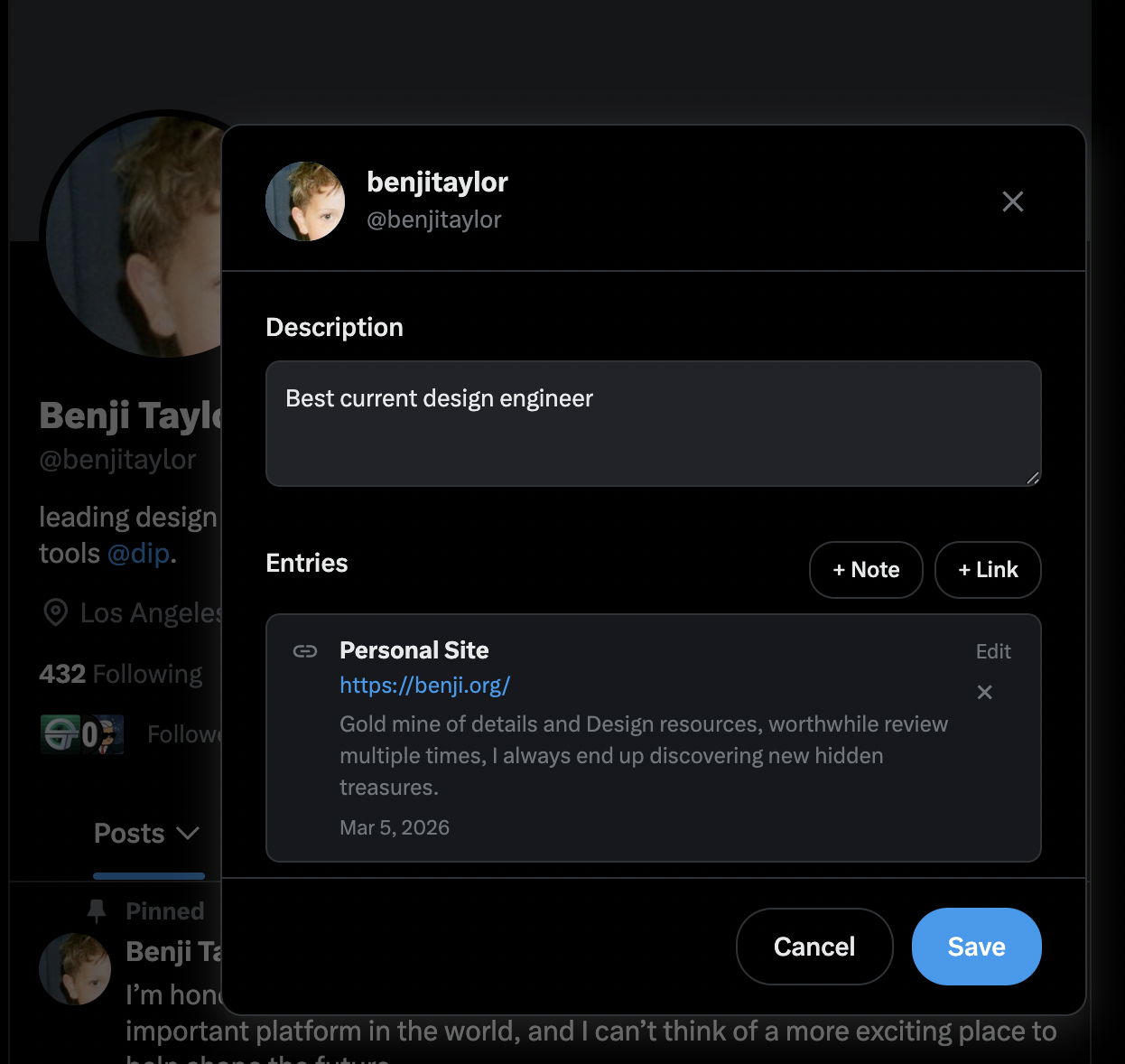
You can now attach private metadata to any X author — a description of who they are, notes, and links to their content outside of X. Access it from the profile page, tweet cards, or the Authors tab.

X profile page showing Saved and Memo stats alongside Following and Followers
Author memo panel with description and a saved link entry

A private space per author

Every author now has an optional memo — a private space where you can write a description of who they are, save links to their blog posts, YouTube videos, or any external content, and add timestamped notes. All stored locally, never shared.

The memo panel opens from three places: click any avatar on a tweet card in the grid, click an avatar in the Authors tab, or use the new Memo stat on any X profile page. A small blue dot appears on avatars that already have saved metadata.

Native profile integration

Two new stats appear alongside Following and Followers on every X profile page. Saved shows how many bookmarks you have from that author and links to a filtered view. Memo opens the author panel directly. Both are styled to be indistinguishable from Twitter's native stats.

The Memo indicator shows a blue dot when you have saved content for that author, so you can see at a glance which profiles you have annotated.

Search rebuilt from the ground up

The entire search pipeline has been rewritten. A four-pass matching system, relevance scoring, and index-first scanning make finding bookmarks faster and more forgiving than ever.

Search Engine

Multi-pass matching

Four matching passes and BM25 scoring surface the right bookmark on the first try.

Speed

20x

Passes

4

Scoring

BM25

Smarter matching

Search now runs four passes per token: inverted index lookup, exact substring, word-boundary prefix, and fuzzy matching. That means typing realti finds realtime, and a small typo no longer returns zero results.

All query words must be present for a result to match. Wrap phrases in quotes for exact matches like "machine learning". The result is a search that behaves the way you expect it to.

Relevance scoring

Results are now ranked using a BM25-inspired formula that weighs exact phrase matches, token proximity, field importance, and recency. Author matches rank higher than body text, and recent bookmarks get a slight boost.

Notes are now indexed and searchable. If you wrote a note on a bookmark three months ago, search will find it just as quickly as the tweet text itself.

Search follows you across tabs

Search now works natively on the Authors and Notes tabs, not just the main bookmarks view. Filter pills and search text persist across tab switches so you never lose context.

Tab-aware queries

On the Authors tab, search filters by handle and display name. On the Notes tab, it filters by note content with inline highlighting. The clear button restores the full grid for whichever tab you are on.

Prefix modes like @ and # are automatically suppressed on tabs where they do not apply, so the interface stays clean and predictable.

Save dialog and FAB polish

The save dialog now defaults to the correct tab for your subscription tier, and the tab indicator positions itself properly regardless of which tab loads first.

The floating action bar and grid selector fade in and out with smooth transitions when switching between tabs, instead of appearing and disappearing abruptly.

A unified design language

Every surface in XSaved now shares the same glassmorphism system that adapts to your X theme. Light, dark, and dim modes all feel cohesive. Plus a new XSaved Pro badge and inline X Premium checkmarks.

Design System

Theme-adaptive glass

One blur and transparency system across every dialog, panel, and dropdown.

1FAB panel -> theme-adaptive glassmorphism

2Search dropdown -> theme-adaptive glassmorphism

3Save dialog -> theme-adaptive glassmorphism

4Pro badge -> inline verified style

Theme-adaptive glassmorphism

The FAB, searchbar, and search dropdown previously used a fixed dark style regardless of your X theme. They now inherit the same glassmorphism CSS variables as every other component, so switching between light, dark, and dim feels seamless.

Tab bar styling, dropdown focus states, and filter pill borders were all tightened to match the unified system.

Pro identity

Active subscribers now see a green XSaved Pro badge in the profile dropdown and settings panel. X Premium verification is shown as a compact blue checkmark inline with your display name, replacing the old separate badge row.

Both indicators update in real time based on your subscription status.

Drag and drop your topics into order

Topics can now be reordered and nested with drag and drop. Drop on the edges to reorder, drop in the center to nest a topic inside another.

Spatial reordering

Each topic card in the management dialog now has a grip handle. Drag a card to the top or bottom edge of another card to reorder it in the list. Drop it in the center zone to nest it as a child topic.

Nesting is restricted to root-level targets to keep the hierarchy manageable, and the dragged card dims while a visual indicator shows exactly where it will land.

Design polish

All modal dialogs now share a consistent 12px border-radius and use theme-aware shadow tokens instead of hardcoded values. Input fields across enrichment dialogs gained a subtle blue focus ring.

Backdrop overlays were softened from 80% to 60% opacity for a lighter feel when multiple dialogs are stacked.

Bulk actions and folder management

A new Select tab in the floating action bar enables bulk operations across your bookmarks. Folders and topics also get dedicated management dialogs with live sync.

Bulk Actions

Select, act, done

Multi-select bookmarks and apply bulk operations without leaving your view.

Actions

5

Dialogs

2

Sync

30 min

FAB select tab

The floating action bar now has a fifth tab dedicated to selection. Select all visible bookmarks, move them to a topic, copy their links, or delete them in bulk. The selection count updates in real time.

Toggling the bookmarks view automatically redirects to the FAB Select tab when selection mode is active, so the relevant actions are always one tap away.

Management dialogs

Folders and topics each have a dedicated management dialog with a two-column grid layout. Folders sync with X in the background every 30 minutes, and topics support inline renaming, nested editing, and merge operations.

Clicking a tab title in the FAB opens its management dialog directly, and notes in the FAB link back to their parent bookmark for quick navigation.

One settings screen to rule them all

Profile, subscription, display, and data settings are now in a single tabbed dialog. Stripe checkout and beta key redemption happen inline without leaving the page.

Unified settings

A new two-panel settings dialog replaces the scattered settings locations. The sidebar shows Profile, Subscription, Display, and Data tabs with icons, and switching between them never changes the dialog size.

Display settings let you choose your grid layout and default sort order, with changes applied immediately. The Data tab handles exports and backup restoration in one place.

Subscription management

The Subscription tab shows your current plan status with colored badges, upgrade pricing with monthly and yearly options, and beta key redemption. X Premium users see their 50% discount automatically.

Subscribe and Manage Billing buttons connect directly to Stripe, and subscription data refreshes automatically when you return from the checkout flow.

The floating action bar gets a brain

The floating action bar now opens into a full popup panel with Topics, Tags, and Notes tabs. Morphing animations make the transition feel native to the interface.

FAB Panel

Three tabs, one button

Quick access to your topics, tags, and notes without leaving the current view.

1FAB pressed -> morph to panel

2Tab: Topics 12 collections

3Tab: Tags 34 labels

4Tab: Notes 7 annotations

Popup panel

Pressing a FAB button opens a panel with switchable Topics, Tags, and Notes tabs rendered in a two-column grid. The panel morphs into place with a height animation and directional title crossfade using the Web Animations API.

Each tab gives you a quick overview of your organization without navigating away from your bookmarks. Long text is contained with overflow protection so the grid stays clean.

Profile dropdown and enrichment

A new profile dropdown accessible from the sidebar shows your account details with a close animation on dismiss. The enrichment dialog adopted a more native look with transparent inputs and a lighter backdrop overlay.

Multiple enrichment dialogs can no longer stack on top of each other, and the native X bookmark toast is preserved so folder links remain accessible after bookmark actions.

XSaved Pro arrives

The subscription system is live. OAuth authentication, Stripe-powered billing, and beta key support lay the foundation for premium features in XSaved.

XSaved Pro

Premium unlocked

Sign in with your X account and unlock the full XSaved experience.

Auth

OAuth

Payments

Stripe

Beta keys

Active

Subscription infrastructure

Sign in with your X account through OAuth, manage your subscription through Stripe, or redeem a beta key. The entire flow runs through a serverless backend on Cloudflare Workers.

Subscription status is cached locally so the extension loads quickly, with background refreshes keeping the status current.

Settings redesign

The settings modal was redesigned as a full-screen overlay with a layout that matches the standalone settings page. The popup account section is now clickable and opens settings directly.

A contextual tooltip on the subscription status badge shows plan details on hover so you can check your status at a glance.

Select multiple bookmarks at once

Click to select multiple bookmarks in the grid and apply actions to all of them. Grid layout preferences now persist reliably across sessions.

Multi-selection

Bookmarks in the grid can now be individually selected with a click. Selection styles make it clear which items are active, and the extension popup gained grid mode controls so you can switch layouts without opening settings.

This is the foundation for bulk operations that arrived in later versions like move-to-topic, copy links, and batch delete.

Grid preferences that stick

A race condition was causing the grid layout to default to masonry on every page load, ignoring your saved preference. Layout choice is now initialized synchronously from local storage so it loads correctly on the first render.

Grid preference changes made from the popup sync immediately to the content script via messaging.

Import your X folders as topics

X folders can now be imported directly as XSaved topics. Re-import to catch new additions, link multiple folders to one topic, and let background sync keep everything current.

Folder-to-topic import

Hover over any folder in the sidebar to reveal an import button. Choose to create a new topic or merge into an existing one. Re-importing a folder adds only the new bookmarks without duplicating what you already have.

Topics created from folders show a folder icon on hover so you can tell at a glance which ones are linked to an X folder source.

Multi-folder sync

A single topic can now pull from multiple X folders, giving you a many-to-many relationship between folders and topics. The import system migrated from a single source field to an array, with backwards-compatible handling for existing topics.

New bookmarks from linked folders are automatically detected during background sync checks, so your topics stay current without manual re-imports.

A smarter save dialog

The save dialog now auto-saves when you switch tabs, suggests your most-used tags, and responds to keyboard shortcuts. It also knows when to get out of the way.

Save Dialog

Keyboard-first workflow

Switch tabs, pick tags, and save without touching the mouse.

1Cmd+1 -> Tags tab (auto-saved previous)

2Cmd+2 -> Notes tab

3Cmd+3 -> Reminders tab

4Top 5 most-used tags shown first

Quick-save workflow

Switching tabs in the save dialog now auto-saves whatever you entered on the previous tab, with a green tick animation confirming the save. Your five most-used tags appear as quick-select options at the top, filtered to exclude tags already applied.

Keyboard shortcuts Cmd+1, Cmd+2, and Cmd+3 switch between tabs instantly, and focus moves to the right input field automatically.

Intelligent fadeout

The dialog fades out after 3.5 seconds if you move your mouse away, but hovering pauses the timer and any click inside disables auto-fade entirely. This means the dialog stays open when you are actively using it and disappears when you are not.

The save button auto-closes the dialog after 800ms so you get confirmation without it lingering.

Quoted tweet media and faster sync

Quoted tweets now render their embedded images, videos, and GIFs with fullscreen lightbox support. A follow-up performance pass cut sync time in half for large collections.

Quoted tweet media

Bookmarks that quote another tweet now display the quoted tweet's media inline, just like X does. Images, videos, and GIFs are all supported with the same lightbox viewer used for direct media.

Backward compatibility is handled automatically, so media from previously saved bookmarks appears without needing to re-sync.

Sync performance

API fetch delays were cut from 1000ms to 500ms with tighter jitter ranges, and initialization delays were reduced across the board. The result is roughly 50% faster sync times for full collection refreshes.

First-time setup is 2.2 seconds faster, and bulk operations like delete and create run 33% quicker. Batch sizes remain at the 100-item API cap.